The true meaning of growing is to get transformed into something better and beautiful. Each period of history tells us how things have evolved over time. Today the need of the hour is automation. We need to save human efforts where ever we can so that gets utilized in something else.
There is a misconception that manual testing will be replaced by automation testing which is not true. Read below to find out what are the test cases we shouldn’t automate and test manually.
Testcases those should be done manually
Whenever we implement new functionalities, manual testing is required as that is onetime implementation.
Look and feel can be sensed by humans only so these type of testing needs to be tested manually.
Usability testing, means how easy it is to use the feature should be tested by a person putting himself/herself in the shoes of a real end user.
If the application behavior is not consistent due to continuously changing requirement, application is still being developed, then it’s a wastage of time to automate.
Test cases which are dependent on multiple platforms for example lets say we are entering some value on a Webpage and upon save, it runs batch job that moves the update to different applications, databases, and you need to check those platforms simultaneously to confirm if it works fine. End to end automation can be done however these type of test cases are not good candidates for automation.
Testcases those should be automated
The thumb rule is anything that is repeated needs to be automated. Regression tests are the repeated tests so that demands automation.
Now a days with CI/CD pipeline we need to automate the Smoke test suite also. So that it gets executed post every build and then accept or reject the build automatically and manual intervention is not required.
We need to automate scenarios where data calculation is involved and ensuring accuracy is the primary goal. If we do this manually then there are possibilities of human errors and its tiresome too.
Data driven testing needs to be automated too. If we have a defined test flow which needs to be executed for multiple data sets then it’s a suitable candidate for automation.
Some teams do in sprint automation, doing automation for the current sprint should always be avoided. As the application is not stable when we try to automate. Automation should be done on n-1 sprint.
The best approach for automation in agile methodology is identify test cases from previous sprint to automate and then keep including them in the regression suite. Finally the regression suite will be executed before release.
Performance testing should be automated as we can’t manually create the load.
Compatibility testing should be automated. It is certainly not the best use of resources to test the same thing in different platforms, browsers, environments manually.
How to take the decision
Return on investment is the gate pass for anything and everything in the business world. If you are planning to give a proposal to your management or client then you must exercise the ROI calculation.
#
ITEM
VALUE
A
Total test cases
Count
100
B
Manual efforts (per
test case) Hrs
0.5
C
No of builds in a
year (ex Bi-weekly)
24
D
Total Manual
Efforts (A*B*C)
1200
E
If 30$ per hour (D*E)
36000
F
Total Manual Cost
$36,000
G
Test Design (per test
case) Hrs
4
H
Dry run (per test
case) Hrs
0.5
I
Debugging (per test
case) Hrs
0.5
J
CI/CD Integration
(per test case) Hrs
0.1
K
Total Automation
Efforts A*(G+H+I+J)
510
L
Add Buffer hours
(10%) K + K*0.1
561
M
If 30$ per hour L* 30
16830
N
Tool licencing cost
(if any)
0
O
Total Automation
Cost M +N
$16,830
P
Investment O
$16,830
Q
Gain F – O
$19,170
R
ROI Q/P
13.9037433
For the above example ROI comes close to 14% which is excellent. Please note, the investment in automation is always high, so short term projects are not good automation candidates. The projects spanning more years produce really good returns being automated.
Hope you find this useful. Thanks for reading. Like/Comment/Share…
We can take example of Java+Selenium projects. When we write scripts, often we need to look into the underlying implementation. For example, what are the methods available in WebDriver interface, what is the code for System.out.println etc. There are different ways how can we look into the code behind. Here I am going to explain the easiest one.
Click on the text, e.g WebDriver
Press F33.
If the source is not attached, it will open a window with a button ‘attach source
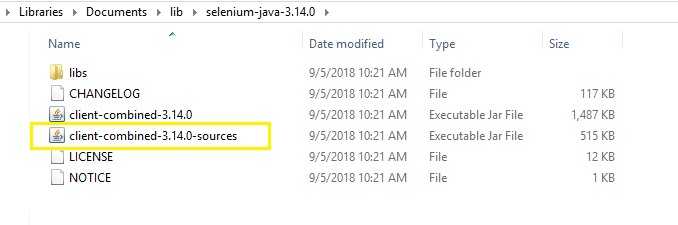
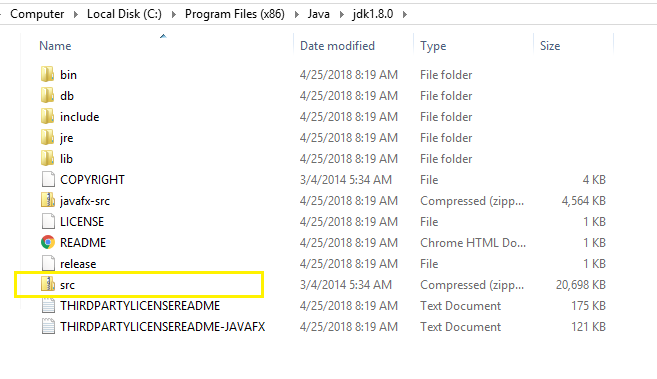
Attach the source projects from the location shown in the below images
Java Script Executor (JSE) is an interface available in the org.openqa.selenium package. This interface has two methods executeScript & executeAsyncScript. We can execute Java script codes using these two methods.
Usually we use executeScript method. When there’s a delay in processing like webservice call, time outs then executeAsyncScript method is used. As the name indicates it is asynchronous and must signal that they are finished by invoking a call back.
1. Draw Border
Using JSE we can draw a border around a particular web element. When an exception occurs like element is not editable or something and the teststep fails, we can draw a border around that element and then take the snapshot, so while reviewing the test report, it becomes really easy to figure out which element has the issue.
HTML links are defined with anchor tag <a href=“#”> and how the link should open is defined by the attribute “target”. If target is set to “_self” then upon clicking the link it will open in the same tab. If we set the value to “_blank” then it will open the link in new tab. As selenium doesn’t have the feature to open link in new tab. This approach really helps in some situations.
Using JSE we can generate alerts in run time. Let’s say we have some issues with any field and we want to generate a custom alert then we can do so. Then we need to handle the alert by switching to alert and accept/decline etc to proceed further.
driver.get(“https://login.salesforce.com\”); JavascriptExecutor js = (JavascriptExecutor)driver; String message=”There is an issue with the log in button”; js.executeScript(“alert(‘”+message+”‘);”); js.executeScript(“confirm(‘Enter your Login credentials’);”); js.executeScript(“prompt(‘Enter the OTP number’,’Enter OTP’);”);
4. Click Element
Sometimes we notice the locator is correct however the Selenium webdriver click method doesn’t work. Could be due to the page loading time, rendering time etc. This is one of the common scenarios faced by automation developers. So we go for Java script click method.
We know how to refresh a page, how to navigate forward, backward in selenium webdriver using driver.navigate().refresh/forward/back methods. We can also do the same thing in JSE. Basically we need to manipulate around history . This approach is rarely used in automation scripts.
Selenium has the get() method that launches the URL. In Java script executor we can use the two approaches either window.location.href or window.open(). The first approach opens the URL in the same window and the second approach opens the URL in another tab.
We know how to get title of a page in selenium webdriver using driver.getTitle(). We can also do the same thing in JSE. Basically we need to say return the document.title. This approach is rarely used in automation scripts.
We don’t have any method in selenium that gives all the text from a webpage. We do have the getPageSource method however it doesn’t give only the text. So we can use this JSE approach to get the text from a web page.
This is the most commonly used Java script executor method. Scrolling to the bottom of the page. We are going to say scroll the window with coordinates 0 (zero) & the height of the scroll bar. So it will go to all the way to bottom of the page.
This is another most commonly used Java script executor method. Scroll to an element. So we don’t need to scroll to the bottom of the page, We are going to say scroll and stop it when the desired element is visible.
We can toggle the background color of an element for few seconds and that will highlight or flash the element. It helps while capturing video of the test case. Let’s say we have a webpage containing the customer details, name, dob, address, phone number etc and we need to compare the details with the data available in excel sheet. In that scenario this feature will really help as we can highlight an element for which the comparison is being done and then keep moving the highlighter to the other fields . That way we can visually see or capture the test flow. Otherwise it will just open the webpage, keep performing the comparison in the backend and after some time the test result will be displayed until then the page will be seen stuck.
This is an alternative to the selenium’s sendKeys() method. We need to locate the element in the DOM by id/classname etc and then set the value attribute with the text we want to enter.
Similarly how we can get the url in selenium using getURL() method we have document.URL that returns the URL of the current webpage. We also have a method that returns the domain of the current web page. This helps while checking if the url contains some particular text or if domain contains some specific text.
Java script executor can find an element by Id and it can find elementsusing name, classname, tagname. For example we can get all the elements using tag name input and highlight them.
Using java script executor we can click on the hidden element on a web page. This is not possible in selenium. If we try to perform any action on the hidden elements using selenium then we will end up with ElementNotVisible exception.
HTML Code <button type=”button” style=”visibility:hidden;” onclick=”myFunction()”>Click Me </button><script>function myFunction() {alert(“hello world”);}</script> ——————————————— WebElement ele = driver.findElement(By.xpath(“//button[text()=’Click Me’]”)); JavascriptExecutor js = (JavascriptExecutor)driver; js.executeScript(“arguments[0].click();”,ele);
19. EnterText Disabled
Using java script executor we can enter text to a disabled textbox. This is not possible in selenium. If we try to perform any action on the disabled elements using selenium then we will end up with ElementNotInteractable exception.
HTML Code Enter Name: <input type=”text” disabled></input> ——————————————————— JavascriptExecutor js = (JavascriptExecutor)driver; WebElement ele1 = driver.findElement(By.xpath(“//input[@type=’text’]”)); js.executeScript(“arguments[0].value=’abc’;”,ele1);
20. Query Selector
Using Java script query selector we can locate the elements by CSS locators and perform the action.
Now a days the calendar UIs are more sophisticated. If you open SpiceJet, Make my trip it doesn’t allow to enter the date using sendKeys(). If we select the calendar icon and move the cursor to next next until it reaches the desired date then it will be too much processing, we will have to run loops and the time complexity will be O(n^2 ). Instead of that we can directly inject the date into the DOM using Java script executor. One drawback of this approach is it might accept invalid date like 12/32/2019. We know there’s no date 32 in a calendar but it might accept as we are injecting the date directly into the DOM. So best practice would be to check the input date format & validity before injecting into DOM.
For example I have taken a calendar widget that has shadow DOM and we will try to inject the date into the DOM using Java script executor.
Selenium imitates the real user behaviors but JSE doesn’t. For example if a field is not visible then selenium will not perform the action and throw not visible exception and the testcase will be failed. That is actually correct as the real user will also be not able to see the field to perform action. However JSE can perform the action as it interacts with the DOM not on the UI and make the test pass which is not correct. So please be cautious while using Java script executor and always prefer Selenium methods over Java script executor methods.
Hit Like/Share if you like the post and add your comment below.
Excel is the most commonly used data source used in test automation frameworks. I have come across one really interesting API that is called Fillo. It allows users to pass SQL queries and fetch data from excel.
Personally I prefer using the elements tab to validate XPath locators however when the DOM is really big and you have multiple matches, console can be used to validate the expressions effectively. Take the same example as above.
$x(“//input[@type=’email’]”)
Points to the input box of type= email.
$x(“//input[@id=’email’]”)
Points to the input box of id= email
If you want to know how many times a function is hit?
function foo() { console.count(‘fooed’); } then type foo() multiple times you will get message like fooed:1, fooed:2 etc.
If right click is disabled and you want to inspect fly out menu
First open the browser and hit F12. So now you have the browsing window and the developer tools side by side. In the browser window open the site and continue until the fly out menu, as soon it appears then press F8. This will freeze the DOM. Then take the arrow pointer from the developer tools and select the fly out menu to inspect.
Hope you like the post. Please like/comment/share.
Excel sheets are most commonly used in test automation frameworks to provide input data. It is always better to modify the data in the excel sheet before supplying it to the test script instead of formatting the data in the automation script.
1. Add trailing spaces
Let’s say we have a country drop down. It is an auto suggest drop down so we need to type the text and then the matching value will be populated. The valid values has a fixed length and after the text it fills with spaces.
‘Australia ‘
‘India ‘
‘United Kingdom ‘
So if we notice there are spaces post every text, if we store only India in the excel sheet and type the same in the input box then the value might not appear as the exact text is not typed. So how can we maintain the data in excel sheet with trailing spaces?
=”INDIA”&REPT(” “,30-LEN(“INDIA”))
This will add 25 spaces to the text INDIA. 30 is the maximum length of the field value. We are subtracting the length of the string from 30 and concatenating that with the string
2. How to add leading zeros
If you work in US applications, there’s something called SSN number. It is an unique identification number assigned to all citizens. It’s a 9 digit number. So let’s say if someone has the number 123 then we need to format it as 000000123. So how can we do this in excel?
=REPT(0,9-LEN(“123″))&”123”
Here the first field says fill with zero. Then we are subtracting the length of the field value 123 from the maximum length of the field 9 and then appending with the actual field value 123. This will generate 000000123. We can specify the column name also like A1, A2 instead of the value 123 directly.
3. How to generate today’s date
When we work in web applications sometimes we need to deal with calendar fields, where we need to input the date. We do have a choice that we can generate the date in the script however that’s similar to hard coding the value and it’s against the best practices. So we can specify the date in the excel sheet. However it has to be dynamic so whenever we run the script it should pick the current calendar date. So how can we do this?
=TEXT(TODAY(),”mm/dd/yyyy”)
This will generate the current date in the format mm/dd/yy. For example 09/06/2019. If we need in a different format just change that part. Example “yyyy-mm-dd” will generate 2019-09-06.
4. How to concatenate cell values
Registration forms are quite common in most of the web applications. Let’s say we have filled the form by inputting the first name and last name of the user and in the next screen we need to verify the full name is getting displayed or not. We can have the first name, last name and also the full name in the excel sheet. The full name column should automatically populate the value from first name & last name column values.
=CONCATENATE(A1,B1)
This will concatenate two column values. If we need space in between then we can write CONCATENATE(A1,” “,B1). We can combine multiple columns using this function.
5. How to choose random data
We can generate random data from a set of values so if the script runs today it will use one value and tomorrow it might pick another value. This way we can cover maximum number of choices in the script. Let’s say we have a field which color theme user wants to apply and it has four values like – Red, Blue, Green, Pink etc. We need to set the theme type column value with any of the choices. So how can we do this?
This will generate a random number between 1, 4 first and then select the value based on that index. If we want to generate any random number then just use RANDBETWEEN(1,2000). This will generate random number between 1 & 2000.
6. How to generate unique data every time
We all know the username should always be unique. Let’s say we are filling up a registration form and entering the username. If we make it static in the input data sheet, then if we execute the same script again then it will fail because the username already exists. To solve this problem we need to generate unique data every time in excel and then input to the script.
=”username”&TEXT(NOW(),”mmddyyyyhhmmss”)
Here the username text is constant, it will append the month-date-year-hour-minute-second value so the generated text will be unique.
7. How to calculate age from date of birth
This is one of the most common scenarios, we have the date of birth and need to calculate the age. This calculation can be done in excel and supplied to the test script.
=DATEDIF(A3,TODAY(),”y”)
The date diff method calculates the difference between date of birth & today. “y” denotes we need the difference in year. We can change it to “m” or “d” if we need difference in month or days.
Hope you like this post. Please comment if you have used any other excel function to format the input data sheet.
Null pointer exceptions are quite common in Java and we need to handle it always. For example, if we are reading something from file and storing in a string variable. Then before performing any further action. Always check whether the value is null or not. Similarly check for Objects also. If the object is null then throw null pointer exception if its left unhandled then the code might behave weird.
//Let's say we are reading something from file
String str=null;
if(str==null)
{
  throw new NullPointerException("value can't be null");
}
else
{
   int len= str.length();
   System.out.println(len);
}
2. Use equals() instead of ==
== is a reference comparison, i.e. both objects point to the same memory location or not.
.equals() evaluates to the comparison of values in the objects.
String city1 = "NewYork";
String city2 = "NewYork";
String city3 = new String("NewYork");

//do we have any difference between city1 & city2
System.out.println(city1 == city2);
System.out.println(city1.equals(city2));

//Now check do we have any difference between city2 & city3
System.out.println(city2 == city3);
System.out.println(city3.equals(city3));

//We will notice, city2 & city3 is failing when we use == operator That's because the address is different however when we compare the content it matches.
System.out.println(System.identityHashCode(city1));
System.out.println(System.identityHashCode(city2));
System.out.println(System.identityHashCode(city3));
I have measured the performance. The == operator takes less time than equals(). That should be obvious right, when we compare memory reference it should take less time however our purpose is never to compare the references, so always use equals method over ==.
3. Simplify the string search
String search can be simplified. We don’t have to iterate over characters or words to check whether substring exists in the string. indexOf() or contains() can be used. Performance wise indexOf gives slightly better performance however using contains method increases readability of the code.
String str="You are a good boy";
if(str.indexOf("good")==-1)
System.out.println("String not found");

else
System.out.println("String found at= "+str.indexOf("good"));

if(str.contains("boy"))
System.out.println("boy string found");
4. Close resources always
Whenever we open any file, dbConnection, scanner object etc. Remember to close the resource post performing all operations. This leads to memory leak if not closed. Also sometimes we write the code to close however during execution it abends due to exception and the resource is left open. To handle the scenario we need to use finally block. So it gets executed every time, whether exception occurs or doesn’t occur.
Scanner sc= new Scanner(System.in);
int res;
try{
        System.out.println("Enter a number to divide with");
	int a=sc.nextInt();
	res=3/a;
	System.out.println("Result"+res);
  }
catch(Exception e){
        e.printStackTrace();
}
finally{
	//This block is called always and closes scanner object
	sc.close();
	System.out.println("scanner object closed");
}
5. Don’t create unnecessary objects/variables
Whenever we create any object or variable then it occupies space in memory. So create them only if it is required. Before creating an object first check, if the class object is null.
String name="Biswajit Sundara";
boolean flag=name.isEmpty();
if(flag!=true){
	System.out.println("My name= " +name);
}
/**********************can be written ************/
if(!name.isEmpty())
System.out.println("My name= " +name);
6. Read files efficiently
When we read files, if we read the whole file at once then the memory is consumed more. Let’s say we have huge file of 2 GB size. If we read the whole file at once then 2GB memory is occupied. Chances are more that we might encounter outofmemory exception if the system configuration doesn’t have more memory allocation. So its always recommendable to read line by line. It is memory efficient.
//Using Apache Commons POI
FileUtils.readLines(new File(path));  //occupies full memory so avoid this

//Streaming through the class file is memory efficient
FileInputStream inputStream = null;
Scanner sc = null;
try {
    inputStream = new FileInputStream(path);
    sc = new Scanner(inputStream, "UTF-8");
    while (sc.hasNextLine()) {
        String line = sc.nextLine();
        System.out.println(line);
    }
    // note that Scanner suppresses exceptions
    if (sc.ioException() != null) {
        throw sc.ioException();
    }
} finally {
    if (inputStream != null) {
        inputStream.close();
    }
    if (sc != null) {
        sc.close();
    }
}
//Apache commons IO is also memory efficient
LineIterator it = FileUtils.lineIterator(theFile, "UTF-8");
try {
    while (it.hasNext()) {
        String line = it.nextLine();
        // do something with line
    }
} finally {
    LineIterator.closeQuietly(it);
}
7. Follow 10-50-500 Rule
10: Package shouldn’t have more than 10 classes.
50: Method shouldn’t have more than 50 lines of code.
500: Class shouldn’t have more than 500 lines of code.
8. Apply SOLID design principles
Single responsibility principle – A class should have one task to perform. If it is performing two tasks then it will create confusion. For example if a class is reading and writing data then split it so one class’s responsibility should be to read and another class’s responsibility to write data.
Open/Closed principle – Open for extension and closed for modification. Developers should always extend the classes and then make modifications instead of modifying the existing classes.
Liskov substitution principle – Use interfaces to create objects for implementing classes instead of creating objects of the classes directly.
Interface segregation principle – It’s like Single Responsibility Principle but applicable to interfaces. Each interface should be responsible for a specific task. The developers need not to implement methods which he/she doesn’t need.
Dependency inversion principle – Depend upon Abstractions- but not on concretions. This means that each module should be separated from other using an abstract layer which binds them together.
9. Remove boiler plate code
Boiler plate code is the code that have to be included in many places with little or no modifications. As a developer we can’t be redundant.
String value = object != null ? object.getValue() : null;
The above one line can be used instead of below 4 line of codes.
String value = null;
if(object != null) {
    value = object.getValue();
}
Use the object oriented concepts like inheritance, composition, interface, reflection etc to get high degree of code reusability.
Remove the duplicate code blocks, create generic methods, classes to generate codes with different arguments.
Add comments properly. Usually I have seen people write comments about what is the code but the comments should also include why the code is written.
Set the access specifiers properly. Public/Private/Protected as per the design. Final/Static/ Super key words should be used to control the manipulation.
Don’t hard code any value. Read it from the external files. This way it is easy to maintain configuration changes without touching the codes.
Write readable code, when someone reads your code it should be like a story, like a flow without disruption. Don’t write big line of code so that someone needs to scroll a lot. Better break it down.
Avoid creating custom annotations for your project unless you are a damn good programmer, because its difficult to understand custom annotations created by someone and its hard to debug also since the error will be in run time which could have been addressed in compile time.
Don’t forget to provide documentation. Use JavaDoc feature.
Don’t keep variables, code blocks which are unused, unreached. Remove code blocks those are commented also.
IDEs usually throw warnings. Make sure to review and correct all the warnings in compile time itself. It costs more if anything goes wrong in run time.
Follow consistent writing pattern. If you are writing code in a certain way then maintain it through out the project. Everyone should follow that pattern too.
Don’t open and close files/db too many times, it costs processing time. Instead of reading cell values from excel one by one opening and closing file again and again. We can open the excel file once, read the entire row, store it in a map and then close the file.
Don’t write empty catch blocks. It means the code is silent on exceptions, it shouldn’t be.
Log the errors, execution steps in a log file so that it’s easy to debug if the application encounters any problem.
The code should follow the framework design pattern. Avoid creating your custom logic in your class files. For example in selenium automation framework, if we have a click method in the library use that, don’t use your own approach in the class file. If you have a better approach, reach out to the architect and change the library method itself.
11. Use Strings carefully
If two Strings are concatenated using “+” operator in a “for” loop, then it creates a new String Object, every time. This causes wastage of memory and increases performance time. Also, while instantiating a String Object, constructors should be avoided and instantiation should happen directly. For example:
//Slower Instantiation
String bad = new String("New string object");

//Faster Instantiation
String good = "New string object"
That’s it for now. If you are aware of any other coding best practices in Java, then do comment below. Thanks for reading!
Myself Biswajit Sundara. I have done my B.Tech in computer science from SRM Univeristy Chennai and currently work as a Test Automation Lead. Its been a decade now being in IT industry and I have always enjoyed exploring new concepts and sharing it with others. That’s enough of me, let’s get back to coding 🙂
 Test Automation Home